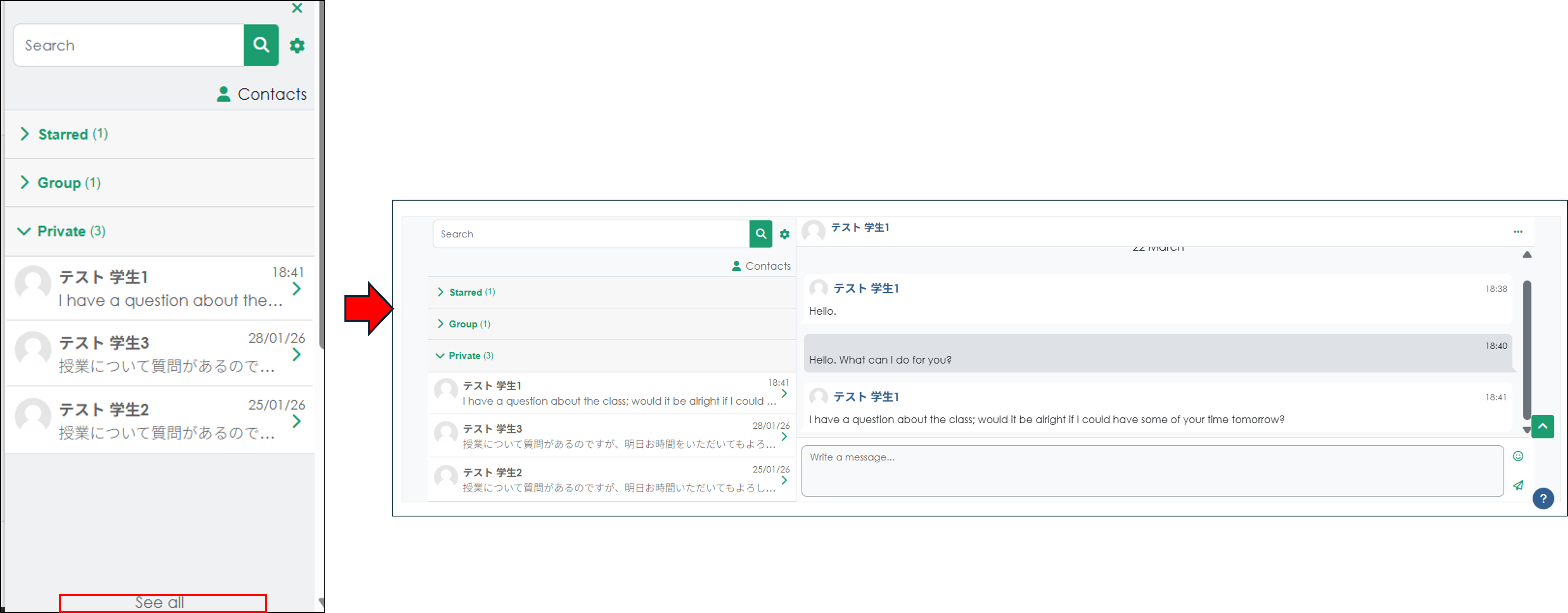
7. About the messaging feature
This feature allows users to communicate directly with one another. Messages can only be sent to users enrolled in the same course.
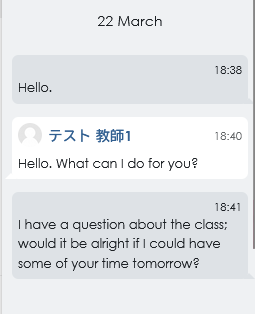
How to Use the Messaging Feature
The messaging feature is not related to courses. Please include information such as the course name when sending a message so that we can identify which course it pertains to.
1. Click the message icon in the upper-right corner of the page to open the message menu. First, click "Contacts"
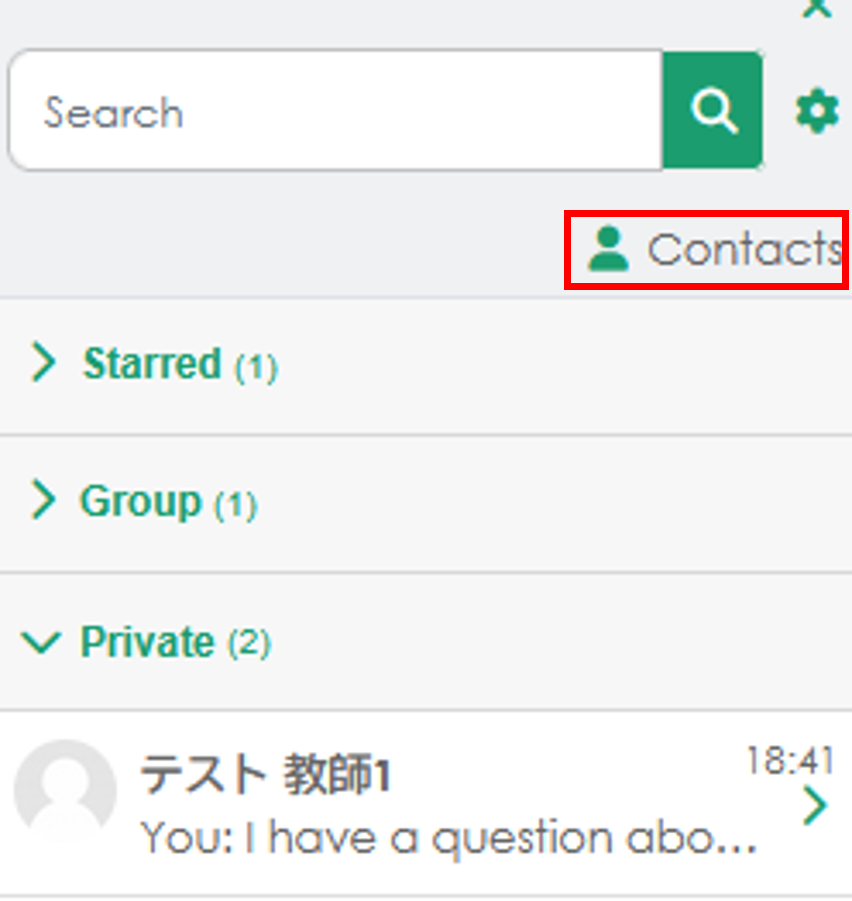
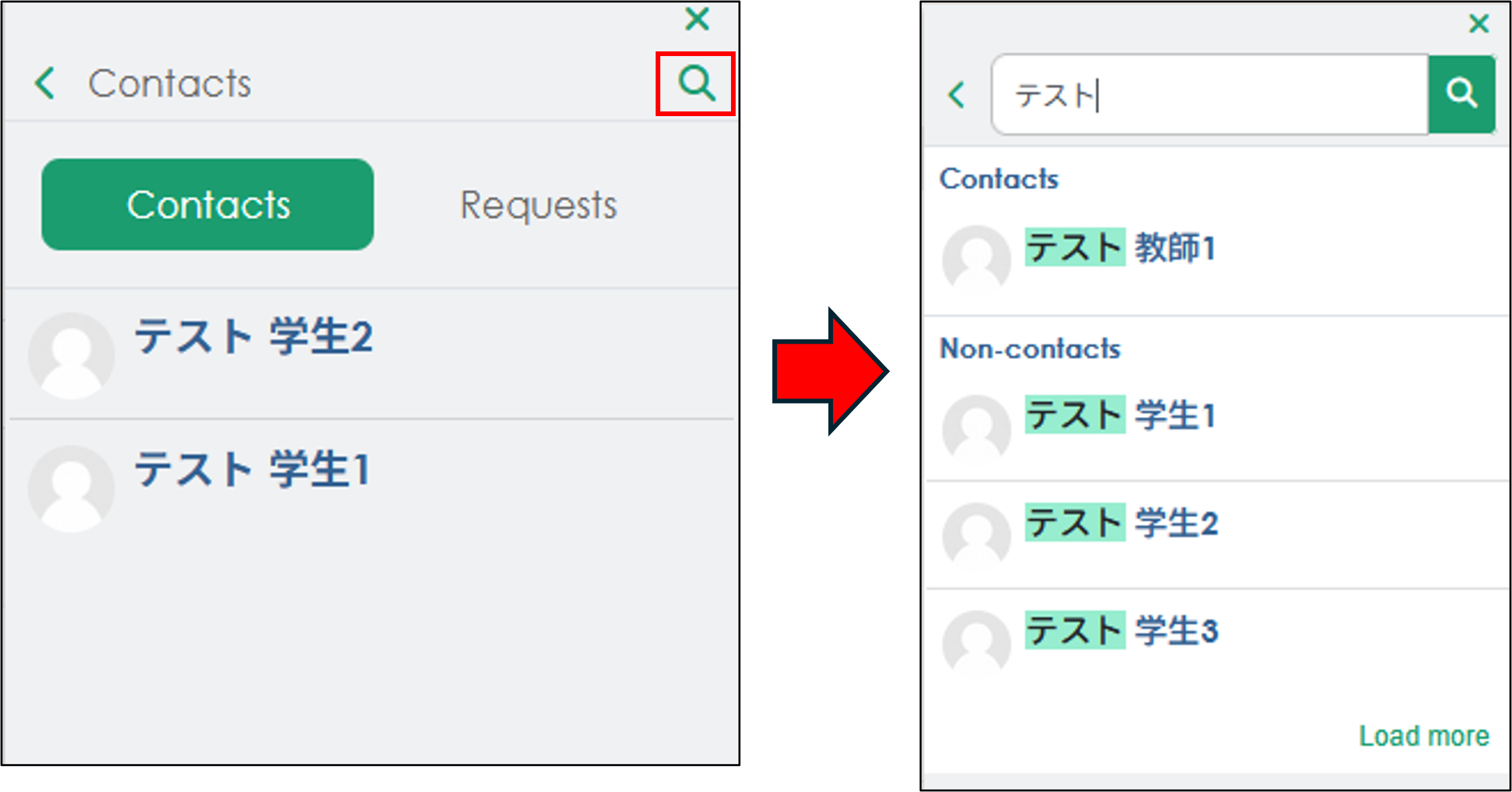
2. Click "Contacts" to view the users in your contacts list.
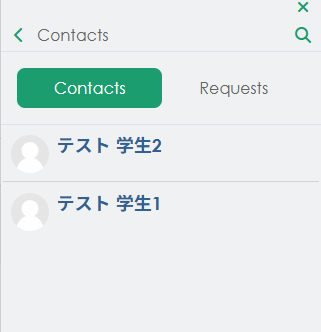
3. To contact a user who isn't listed in your contacts, click the search icon in the upper-right corner, search for the user's name, and select them to open the message screen.
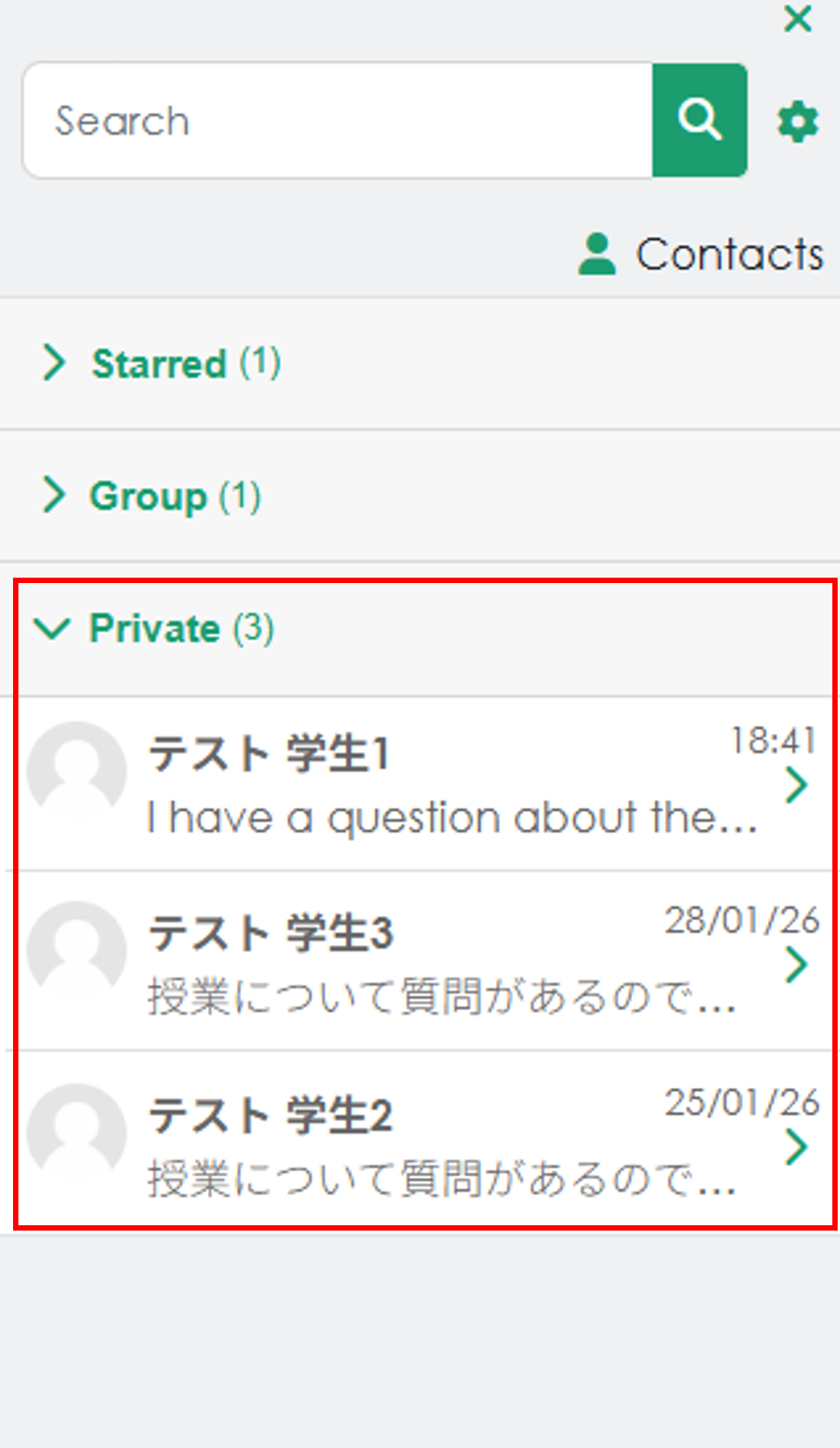
4. Click "Private" to view messages for each user.
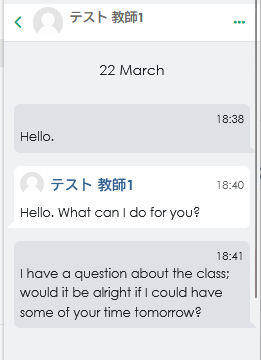
5. Click on a user’s message to start a chat.
6. Click "See all" at the bottom of the drawer to display the messages page.
Click the X in the upper-right corner to close the message drawer.